
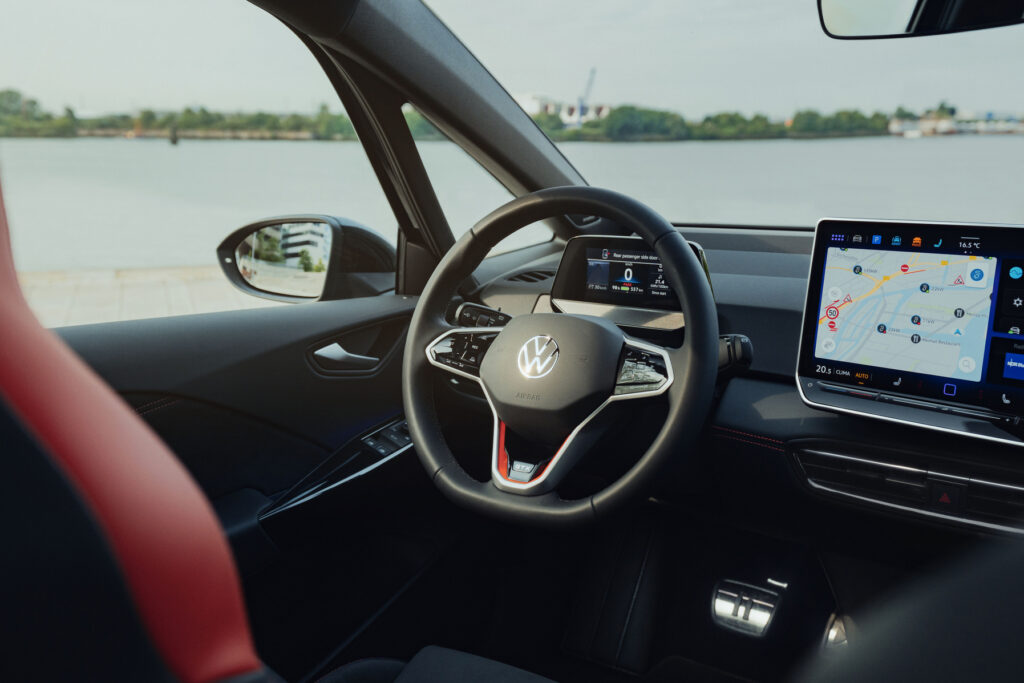
A frozen infotainment screen is a well-known problem with the Volkswagen ID.3, especially with early models from 2020 to 2022. Software bugs, overheating or incomplete updates can cause the screen to freeze or go completely black. The quickest fix is often a soft reset, but in stubborn cases you may need to temporarily remove fuse 19 for a full hardware reboot. Annoying, but fortunately almost always solvable.
What causes a frozen infotainment screen?
The ID.3’s infotainment system runs on complex software that is vulnerable to different types of malfunction. The most common causes are:
- Software bugs: Incomplete updates or conflicts between apps in the MEB system (Modular Electric Drive Matrix, Volkswagen’s electric platform) cause crashes, often after using navigation or media streaming.
- Overheating: In hot weather or during intensive use, the screen sometimes locks up to prevent hardware damage.
- Hardware issues: Loose connections or faulty screen components are rare, but they can play a part.
Volkswagen acknowledges this issue in service bulletins. Owners mainly report problems during heavy use of CarPlay (Apple’s in-car smartphone system) or Android Auto (Android’s in-car smartphone system) while driving. The manufacturer tries to improve stability via software updates, but not all ID.3 models are equally up to date.
‘ This method solves around 70 percent of freezing problems straight away. ’
Soft reset as the first solution
The soft reset is the quickest way to bring a frozen screen back to life. Press and hold the volume-down button on the right-hand side of the steering wheel for 10 seconds. The screen will automatically restart within 30 seconds and your personal data and settings will be preserved.
This method solves around 70 percent of freezing problems straight away. The system restarts without you having to switch the car off or carry out any technically complicated procedures. If the screen doesn’t respond at all to this action, a harder reset is needed.
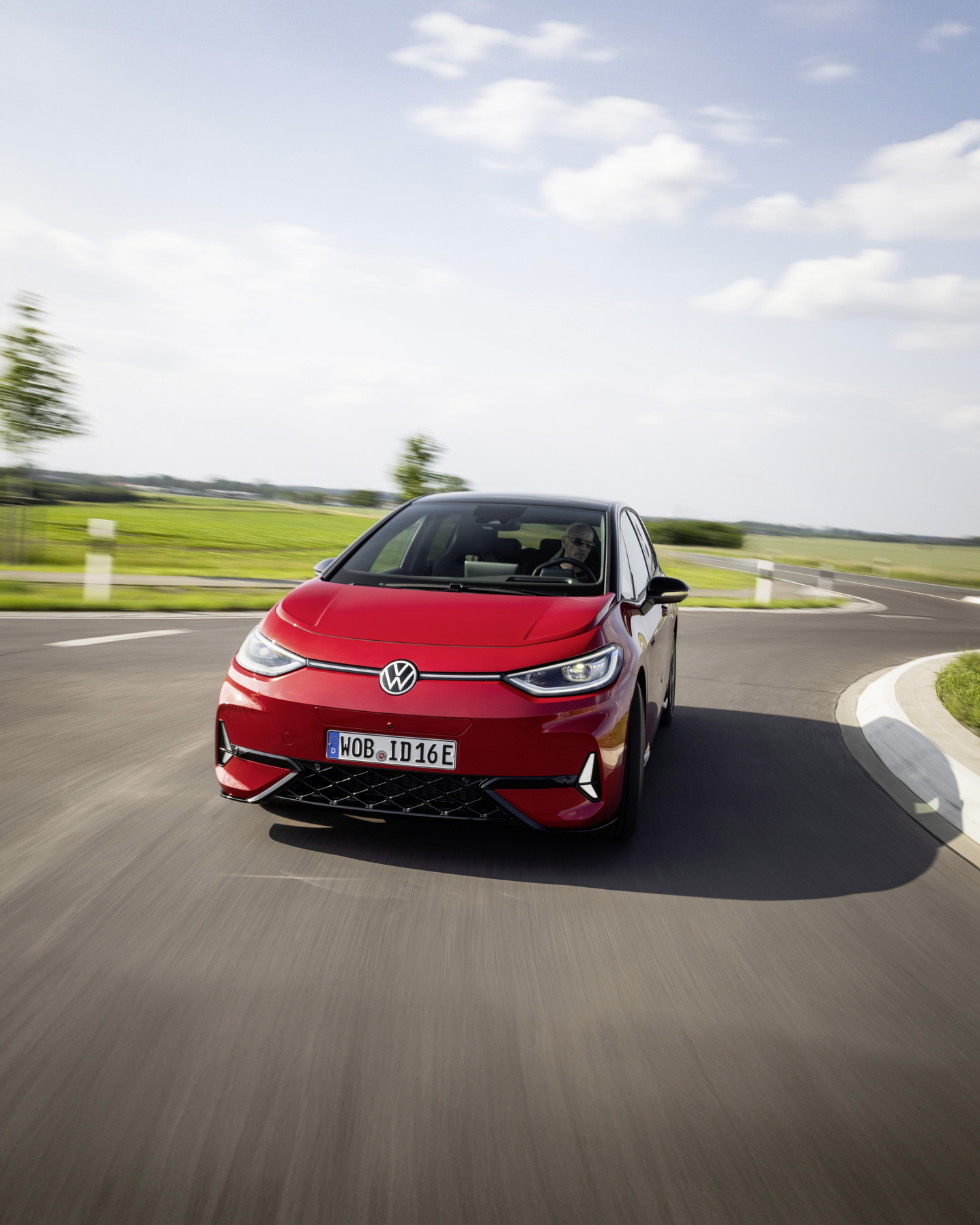
Hard reset via fuse 19
If the soft reset has no effect, force a hardware reboot by temporarily removing fuse 19. This fuse is located in the fuse box under the dashboard on the driver’s side. First switch the car off completely by pressing the start button while keeping your foot on the brake.
Open the fuse box and locate fuse 19. Pull this fuse out and wait at least 5 minutes before refitting it. This carries out a full reset of the infotainment system. After you refit the fuse and restart the car, it usually takes 1 to 2 minutes for the system to boot up fully.
This method is effective for persistent freezes, but don’t use it as your standard solution. Regularly removing fuses can in the long run cause other electrical issues.
Alternative reset methods
Besides the soft reset and fuse method, there are other ways to restart the system. You have several options:
- Switch the car off completely: Turn the car off, wait 5 minutes and then start it again. This gives the system time to close down processes.
- Disconnect the 12V battery: Disconnect the 12V battery for 10 minutes if the infotainment system does not respond to other methods. This requires technical knowledge and isn’t suitable for everyone.
- Factory reset via the menu: Go to Settings > System > Reset > Restore factory settings. This will erase all your personal data, navigation preferences and linked apps, so make a backup first.
- Safe mode: Hold the start button down for longer during start-up to enter basic mode. This helps you identify and remove apps that are causing the problem.
Each method has its own use case. For everyday problems, a soft reset is sufficient, while recurring issues call for a more thorough approach such as a factory reset.
‘ Be patient and do not force anything by pressing buttons during this process, as this may actually cause new problems. ’
How long before the system works again?
Restart time differs per reset method. A soft reset takes about 30 seconds. After removing and refitting fuse 19, the full start-up process takes 1 to 2 minutes. For a factory reset, allow 10 to 20 minutes including setting up your personal preferences again.
During start-up, the infotainment system runs several checks and reloads all modules. Be patient and do not force anything by pressing buttons during this process, as this may actually cause new problems.
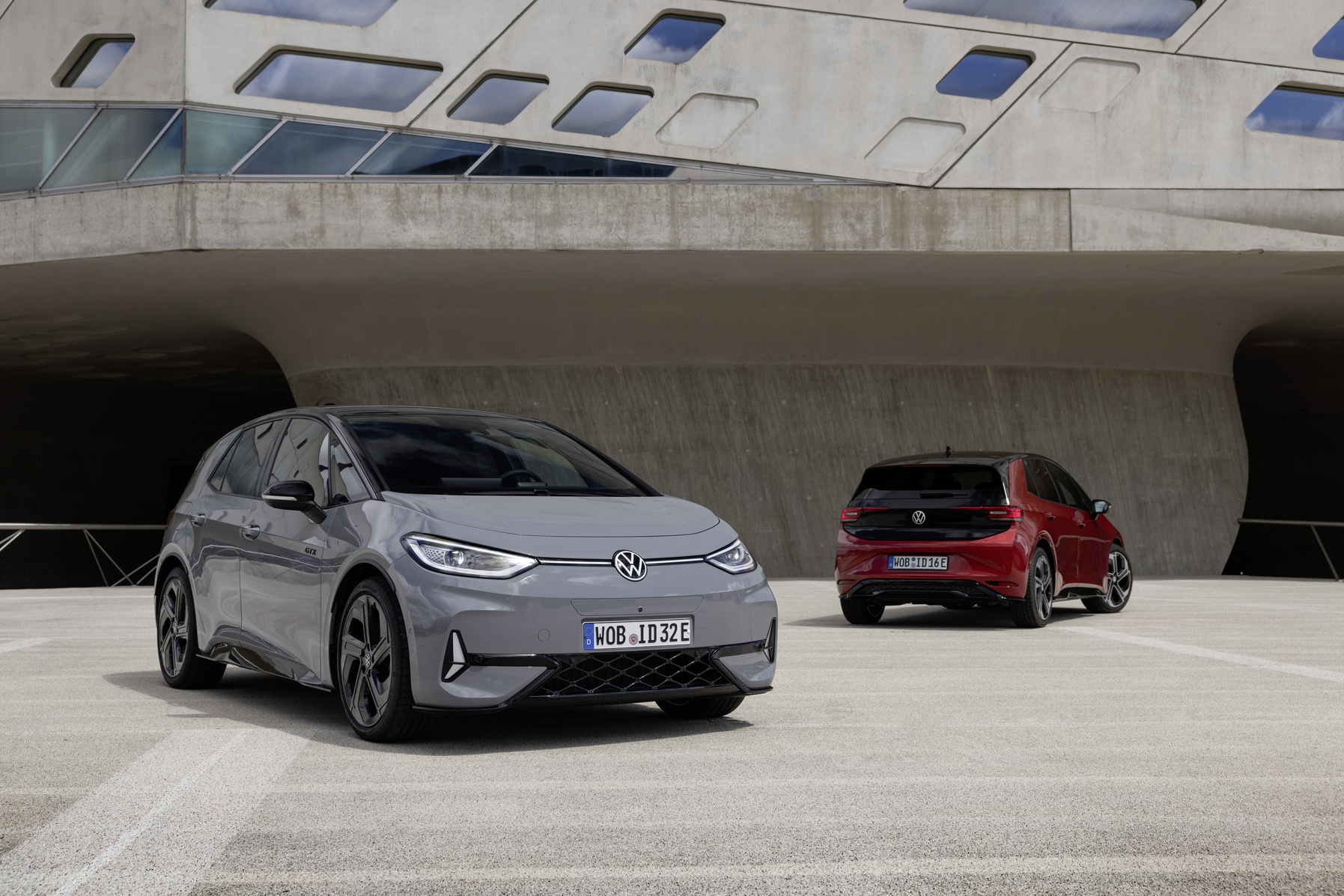
Software updates prevent repeat issues
Volkswagen resolves many freezing problems via over-the-air updates. Regularly check whether new software is available by going to Settings > Software update. Make sure the car is connected to Wi‑Fi for a stable download connection.
Owners report that updates in 2023 and 2024 have significantly improved system stability. Keep your system software up to date to reduce the risk of freezes. Dealers can also install updates manually if the car is still under warranty.
Practical tips to prevent screen freezes
Prevention helps to minimise frustration and the need for resets. Some tried-and-tested tips from ID.3 owners:
- Avoid using several demanding apps at the same time, such as navigation and video streaming via CarPlay or Android Auto.
- Disconnect external USB devices if you experience problems, especially during intensive media use.
- Keep the car cool with the air conditioning on auto mode, especially in warm conditions.
- Install updates as soon as they become available and run them while the car is parked.
- Fully close apps you are not using instead of leaving them running in the background.
These measures reduce the risk of software conflicts and the system overheating. Even so, an occasional freeze remains possible, even with careful use.
‘ In some cases, Volkswagen has found loose connections behind the screen that can only be fixed by a specialist. ’
When should you go to the dealer?
If the screen freezes regularly despite resets and updates, there may be a hardware fault. First check with an OBD tool (a diagnostic device for reading fault codes in the car) whether there are any error codes in the system that point to deeper issues. Dealers carry out diagnostics free of charge if the car is still under warranty.
If the problems persist, it may be necessary to replace the infotainment screen or related components. In some cases, Volkswagen has found loose connections behind the screen that can only be fixed by a specialist. Do not try to repair this yourself if you do not have technical experience.
Want to know more about the ID.3 and other models?
On the Carnews website you will find much more information about common problems with electric cars, practical maintenance tips and owners’ experiences. Discover which challenges other models bring and how to tackle them. Explore the world of modern automotive technology and stay up to date with the latest developments.
Frequently asked questions
A frozen infotainment screen or navigation system can negatively affect your driving experience because you temporarily have no access to navigation, driver assistance settings, phone and media controls, which can be distracting and frustrating. A quick solution is usually a soft reset: hold the system’s volume or power button for around 10 seconds until the screen restarts. If this doesn’t help, switch the car off completely, wait a few minutes and restart it, or (if the menu still responds) perform a system or factory reset. If the problem keeps coming back, check for software updates and have the system read by a dealer for possible hardware or software faults.
Modern cars usually use three levels of system reset: a soft reset (e.g. holding a specific button or button combination for 10–20 seconds to restart the infotainment or dashboard electronics), a “hard” reset via complete power interruption (car off, wait a few minutes, sometimes briefly disconnecting the 12V battery) and a factory reset via the infotainment system’s settings menu, during which user data is erased. In addition, there may be brand- or model-specific procedures, such as starting in a basic or safe mode by holding the start button for longer. Workshop manuals also often describe OBD diagnostic procedures to reset individual control units (ECUs) in software.
Yes, there are some preventive measures: make sure the infotainment system software is always up to date and only perform updates when the car is stationary. Avoid overheating by keeping the interior cool (air conditioning, sunshades) and do not leave the car for long periods in full sun with the system heavily loaded and switched on. During intensive use or track days, limit the number of simultaneous tasks (for example no heavy navigation + mirroring + logging apps at the same time). If the screen freezes more often, have the dealer perform a software update or diagnosis to correct structural faults.
A hard reset can erase personal settings and stored data (such as navigation preferences, paired phones and user profiles). If done incorrectly, or when disconnecting the battery, you can trigger fault codes or malfunctions in other electronic systems. In some cases, a hard reset can temporarily mask an underlying problem, delaying necessary repairs. Working on the on-board computer yourself can also have consequences for warranty or liability if damage occurs.
It is necessary to consult a dealer if the system still does not respond or keeps freezing even after a soft and hard reset. A dealer is also required if you suspect hardware problems, such as a defective screen or loose connections. When a factory reset or OTA update does not solve the problem or error messages keep returning, a dealer must read the car using diagnostic equipment. A dealer visit is also needed if the issue is covered under warranty or has been acknowledged by Volkswagen in a service bulletin.