
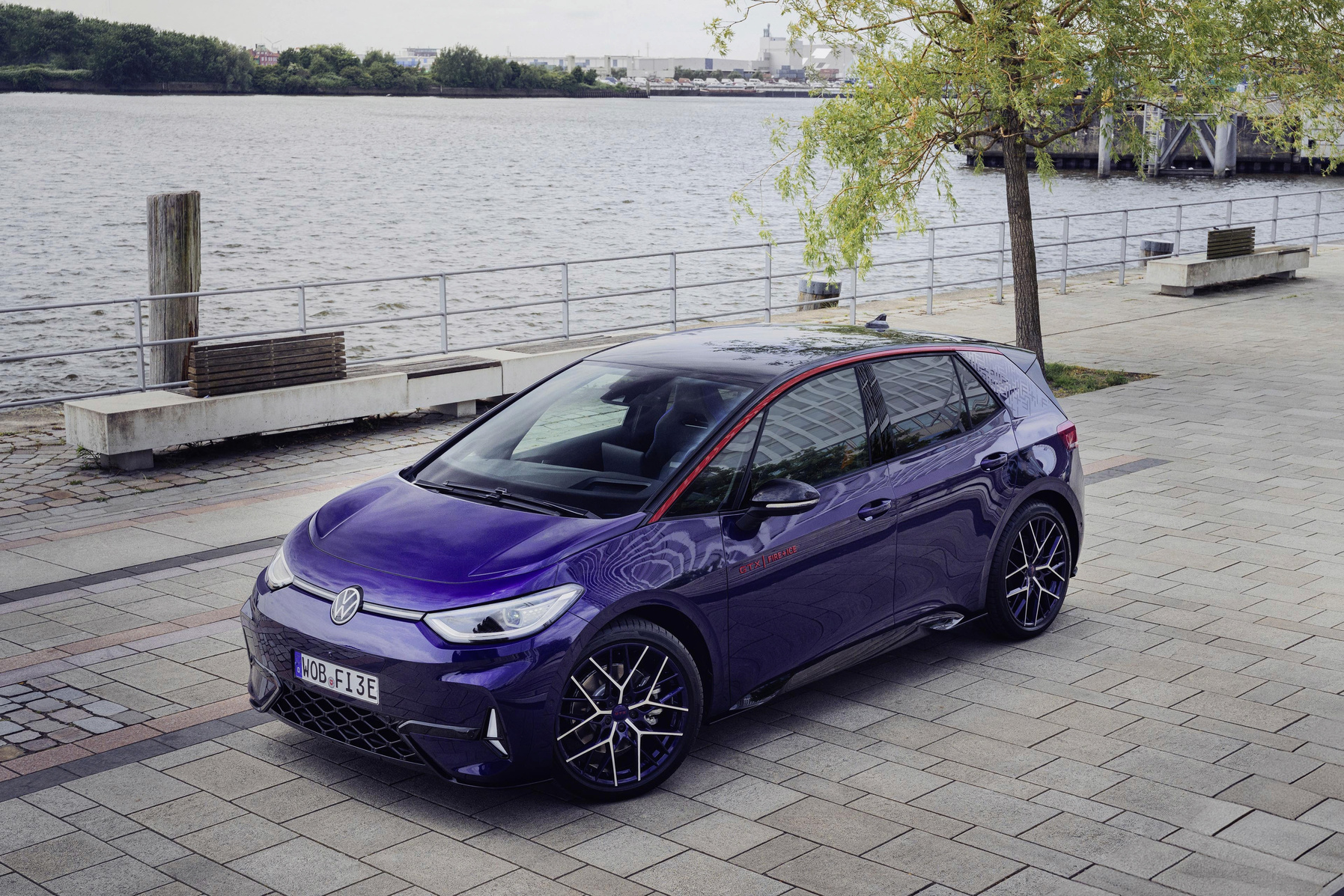
Many Volkswagen ID.3 owners run into an annoying problem: the navigation function does not show automatic charging stops during long journeys. Error messages and unreliable route planning make it particularly difficult to plan a trip with rapid charging stops. Software updates bring improvements, but they only solve the problem gradually. For now, you still need to intervene regularly yourself. Read on to find out why this happens and what you can do about it.
Why are automatic charging stops missing?
The ID.3’s navigation system is designed to automatically add charging stops when your battery is at risk of running flat during a long drive. In practice, this function does not work nearly as reliably as it should. The system relies on GPS, a mobile internet connection and locally stored map data. Sometimes one of these elements fails. The charging stops then simply disappear from your route.
The problem often lies in the combination of weak GPS signals and disrupted internet connections. The navigation system can then no longer determine in real time where the nearest rapid chargers are located. Cache data (temporarily stored navigation data) also regularly plays a role. This outdated information blocks the loading of new map data. As a result, the system can no longer calculate where you need to charge.
Some owners report a striking effect: after certain software updates, the function actually works worse instead of better. Error messages appear without any clear cause. Well-known rapid charging stations suddenly stop being recognised. This causes uncertainty and stress, especially on less familiar routes.
‘ That way you won’t end up at a charging point that’s closed or out of order. ’
Adding charging stops manually in the ID.3
Your navigation does not automatically plan charging stops. In that case, you can enter them manually. Go to the navigation screen and search for a specific charging station using the search function. Type in the name or address and add it to your route as a stopover. The system will then recalculate your route with the charging point included.
Bear in mind that you’ll have to repeat this for several stops on longer journeys. Plan well in advance which charging stations you want to use. Choose a charging station and check via external apps or websites whether the rapid charger is actually available and operational. That way you won’t end up at a charging point that’s closed or out of order.
Many owners follow the steps below to enter charging stops manually:
- Determine your final destination and enter it into the navigation system
- Work out how many charging stops you’ll need, taking your remaining range into account
- Search for rapid charging stations along your route using the search function
- Add each charging station as a stopover in chronological order
- Check the total driving time and adjusted route
Better navigation apps as a temporary solution
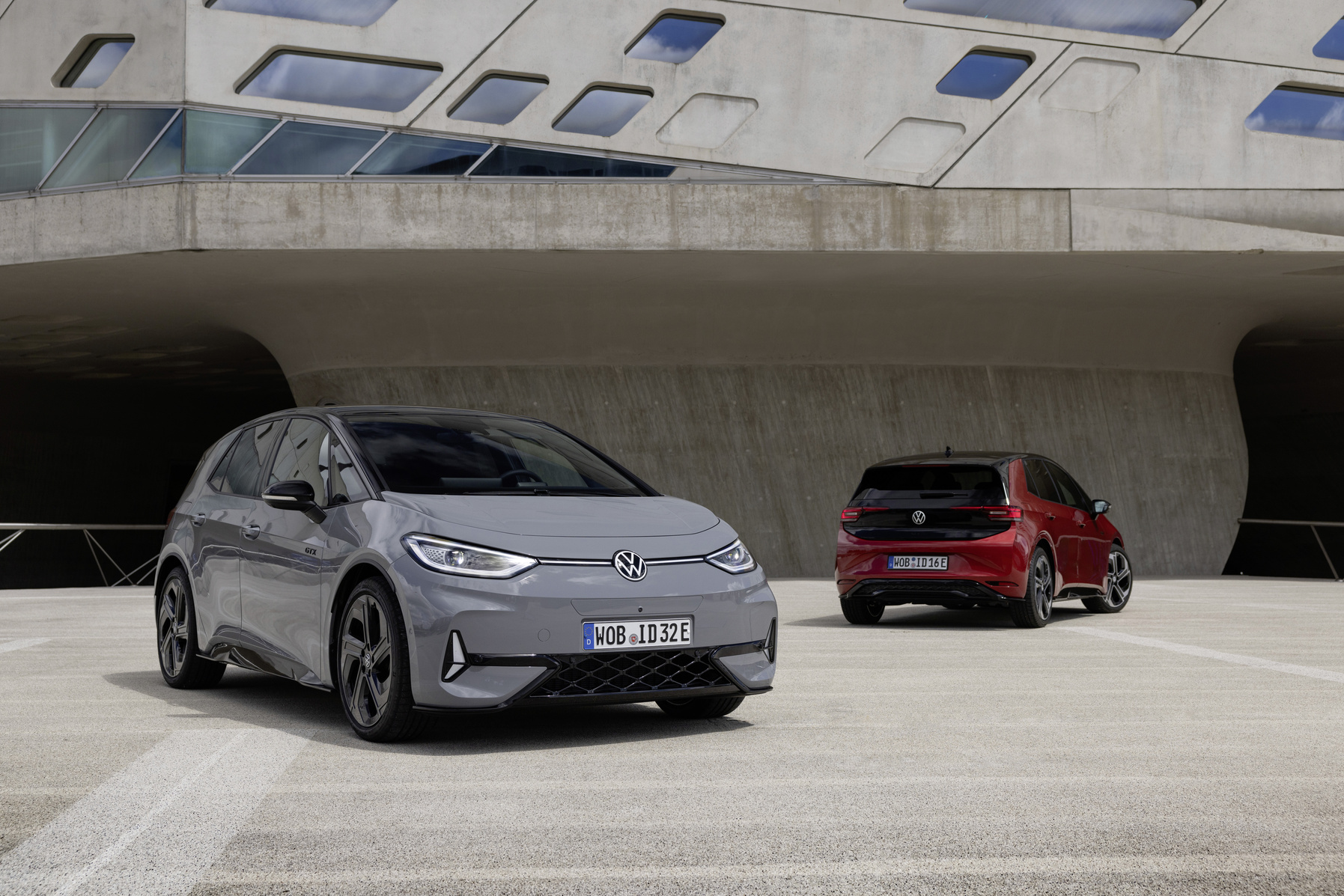
The built-in navigation system of the ID.3 sometimes just lets you down. Fortunately, external navigation apps often provide a more reliable alternative. Apps such as A Better Route Planner and Chargemap (route planner apps for electric cars) focus specifically on electric driving. They include extensive information about rapid charging stops. These apps have up-to-date data on charging stations, availability and charging speed.
A Better Route Planner automatically calculates how many charging stops you need. The app also works out how long you need to charge at each stop. The app takes your driving style into account. Weather conditions also play a role, and the app also factors in traffic density. This gives you a more realistic route plan. The standard ID.3 system often provides less accurate plans.
Chargemap shows the real-time availability of charging points. You can immediately see which are occupied or available. Users can leave reviews describing the condition of charging stations and sharing their experience of how well they work. You know in advance where charging will go smoothly and where it will not. You can link both apps to your smartphone and display them in the car via Apple CarPlay or Android Auto (smartphone mirroring systems for cars).
Note: these apps use your phone connection. Make sure you have enough data allowance or a stable hotspot connection, so you don’t end up without navigation halfway through the journey.
Route planning to rapid chargers remains problematic
The ID.3 system does a poor job of filtering rapid charging stations. This is a recurring problem. The navigation system sometimes shows charging points that are too slow for en route charging, such as 11 kW AC chargers (slow alternating current chargers). For long-distance trips, you really want rapid chargers of at least 50 kW. The system by no means always makes that distinction automatically.
Predictions of your remaining range also frequently go wrong. The system does not sufficiently take various factors into account. High speed plays a role; wind also affects the range, and temperature has an impact as well. The navigation suggests charging stops that are too far away, or, conversely, stops that are unnecessarily close. This leads to inefficient planning and unnecessary charging time.
Some owners have noticed a limitation: the system only displays well-known charging networks, such as Ionity or Fastned (major providers of rapid charging stations in Europe). Smaller providers do not appear in the search results, even if they offer rapid chargers. That limits your options and can mean you have to make a detour.
‘ However, they regularly come back. ’
Recognising navigation errors in your ID.3
You may be wondering whether your navigation system really is making mistakes. There are signs that point to problems with the navigation and charging stop function. Watch out for white or frozen screens that appear while you are entering a destination. This often indicates a system error or corrupted data.
Error messages such as “No connection available” or “Map data not loaded” are clear indicators. Another warning sign is well-known charging stations suddenly disappearing from your search results. Something is wrong. If your route suddenly shows illogical diversions while there is no traffic congestion, that too can point to a navigation error.
Sometimes the screen remains stuck at one point and the route is no longer calculated. The estimated arrival time may also jump back and forth without any obvious reason for this fluctuation. These kinds of symptoms often disappear after restarting the infotainment system. However, they regularly come back.
Practical steps to solve problems
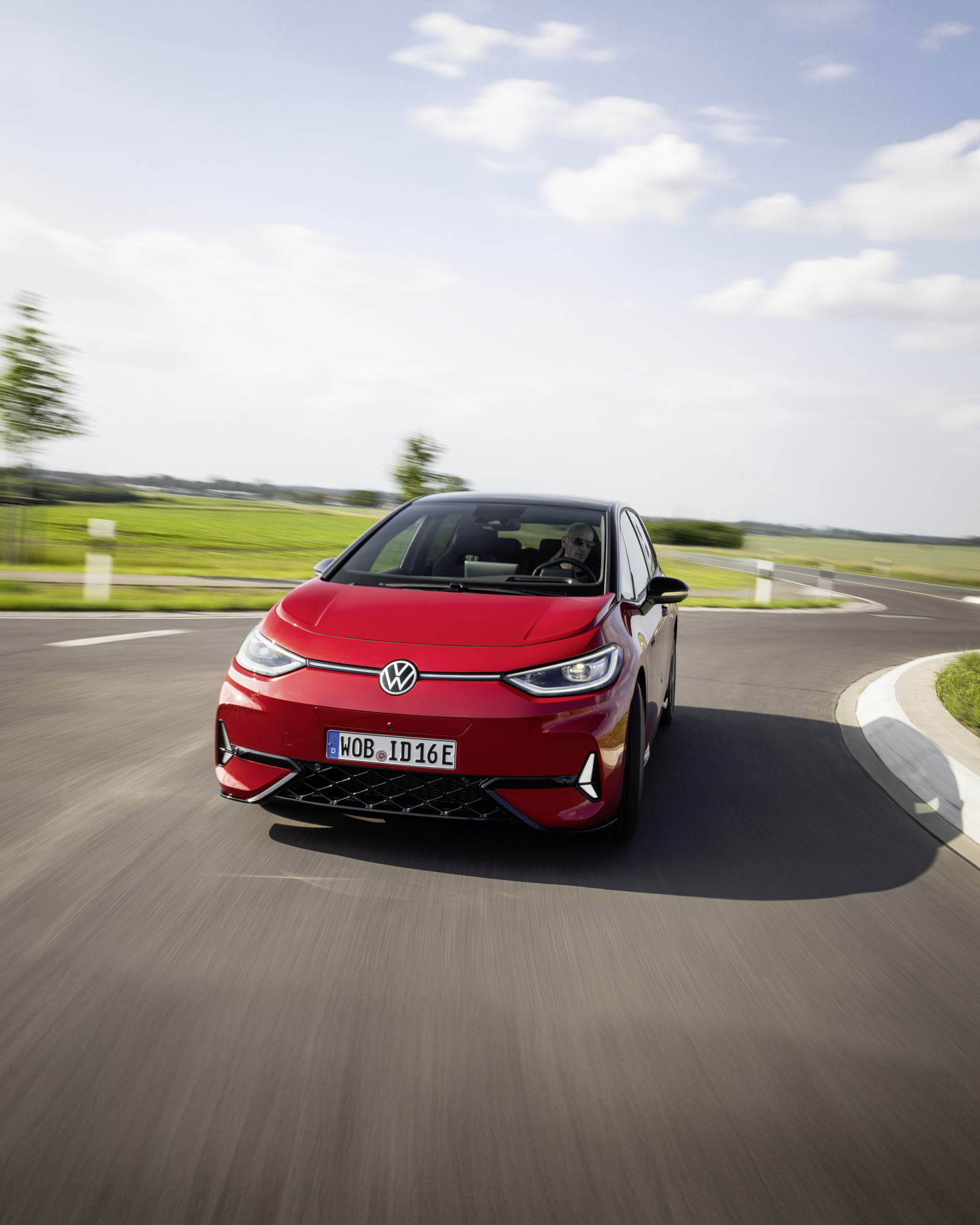
Start with a simple restart of your infotainment system. Park the car safely and hold down both buttons on the steering wheel for about ten seconds. The screen will reboot. This often resolves temporary software errors and frozen processes.
Next, check your internet connection. Go to the settings and see whether your car is connected to mobile internet or wifi. Reset the connection if necessary. Ideally, look for a location with a strong signal to reload map data.
Clear the navigation cache. Open the settings menu and go to the vehicle section, then select software. This step removes outdated map data and forces the system to download new data. This can take a few minutes, depending on your internet speed.
If the problems persist, try the following steps one after the other:
- Check whether a software update is available and install it via wifi
- Test GPS reception by driving to an open area without buildings or trees
- Restore the factory settings as a last resort. First create a backup of your personal data
- If the problem keeps recurring within 100 kilometres of delivery, contact your dealer
In the long term, software updates offer the best solution. Volkswagen regularly releases updates that reduce navigation and charging stop errors. Keep your system up to date. Install updates as soon as they become available. Park where you have a stable wifi connection and make sure your battery is sufficiently charged.
Avoid problems on long journeys
If you are covering a long distance, always plan your route in advance. Use external apps to check charging stops and compare them with what the ID.3 system suggests. Test your navigation shortly before you set off by entering a short test route. That way, you’ll spot problems before you’re actually on the road.
Make sure you always have an alternative to hand. Keep your smartphone charged and install at least one reliable navigation app for electric driving. Save important charging stations in your favourites so you can quickly find them again without needing the search function.
Drive to a location with good wifi reception for software updates and allow yourself enough time. Do not install updates immediately before a long journey. First test the system over short distances. This lets you check whether the update actually brings improvements and whether it introduces any new problems.
On the Carnews website you will find many more tips about electric driving and charging issues, as well as information about navigation systems in modern cars. Discover the experiences other ID.3 owners share and see which solutions work best for them. Explore the site and stay up to date with the latest developments in electric mobility.
Frequently asked questions
The integrated navigation in electric cars is basically quite reliable when it comes to planning charging stops, because it takes battery status, route and traffic into account. In practice, however, errors occur regularly due to GPS and connectivity issues, corrupted cache data or software bugs after updates. As a result, charging stop predictions can sometimes be unrealistic or miss charging locations. For long journeys, it is therefore wise to use the automatic planning, but to check it and, if necessary, correct it manually.
Common frustrations include maps that do not load or freeze, making charging stop navigation unusable while driving. Inaccurate or unrealistic charging stop predictions – due to GPS or network problems – also cause stress about whether your range is sufficient. Software bugs after updates that cause GPS and cameras to fail make automatic charging planning unreliable. In addition, drivers complain about unexpected rerouting or missing charging stations, forcing them to plan manually after all.
Experienced EV drivers often use external apps such as A Better Routeplanner (ABRP), Chargemap, PlugShare and Shell Recharge or Ionity apps to plan charging stops themselves and get more reliable predictions. They combine these apps with the built-in navigation by first using the external app to work out an optimal route and charging strategy and then manually entering the chosen charging points into the car’s system. Another strategy is to build in a margin (for example an extra 10–20% buffer) and deliberately plan charging stops earlier than the car suggests. They also keep their own favourites lists or notes with reliable charging locations and avoid areas with poor coverage, where real-time data can confuse the car.
Inaccurate charging stop recommendations disrupt planning because you have to charge earlier or later than expected, making the total journey time and route unpredictable. This can lead to range anxiety, as you are less sure whether you will reach the next charger. Drivers feel less relaxed and more often have to look for alternative charging stops themselves. On longer journeys, this increases the mental load, because you have to monitor and adjust constantly.