
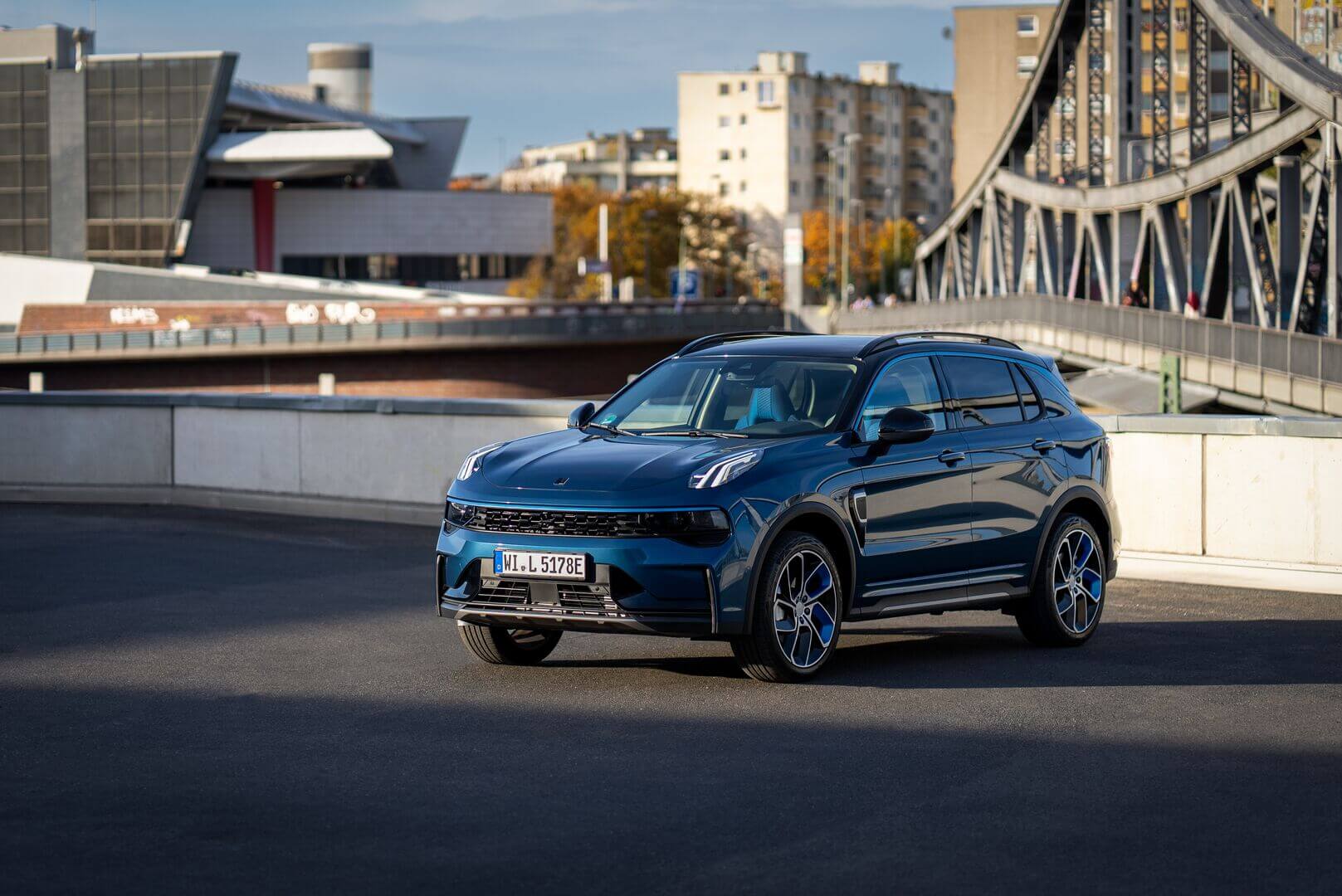
The infotainment system of the Lynk & Co 01 regularly suffers from a dropped internet connection. This blocks updates, navigation and streaming services, even though you specifically invested in a modern car with advanced connectivity. The problem is often caused by software glitches, network issues or an incorrect configuration of the system. With a few targeted steps you can usually restore the connection yourself.
Why does the internet connection drop out?
The Lynk & Co 01 features a 12.8-inch touchscreen with Qualcomm Snapdragon chips and a dual-chip architecture for multimedia, navigation and apps such as Apple CarPlay and Android Auto. Despite this advanced technology, owners report that the internet connection regularly drops. This is because the system depends on several components that all need to work together properly.
The main causes are:
- Software bugs in the Lynk & Co 2.0 system that block connectivity functions
- Problems with the built-in eSIM or an expired data subscription
- Poor network coverage or interference with other systems in the car
- Outdated firmware that is not compatible with newer phones or networks
- Incorrect settings for mobile data or Wi‑Fi connections
‘ Without a valid subscription you have no access to cloud navigation, OTA updates (automatic software updates via the internet) or other online services. ’
First check the basic settings
Start with a simple check of your network settings. Go to Settings > Connectivity > Mobile data on the infotainment screen. Check whether mobile data is switched on and whether the system is receiving a signal. Some owners already discover here that the data option has been switched off by accident.
Then check whether you have an active data subscription for the built-in eSIM. Without a valid subscription you have no access to cloud navigation, OTA updates (automatic software updates via the internet) or other online services. You can often check this via the Lynk app on your smartphone, where you can also activate a data plan directly.
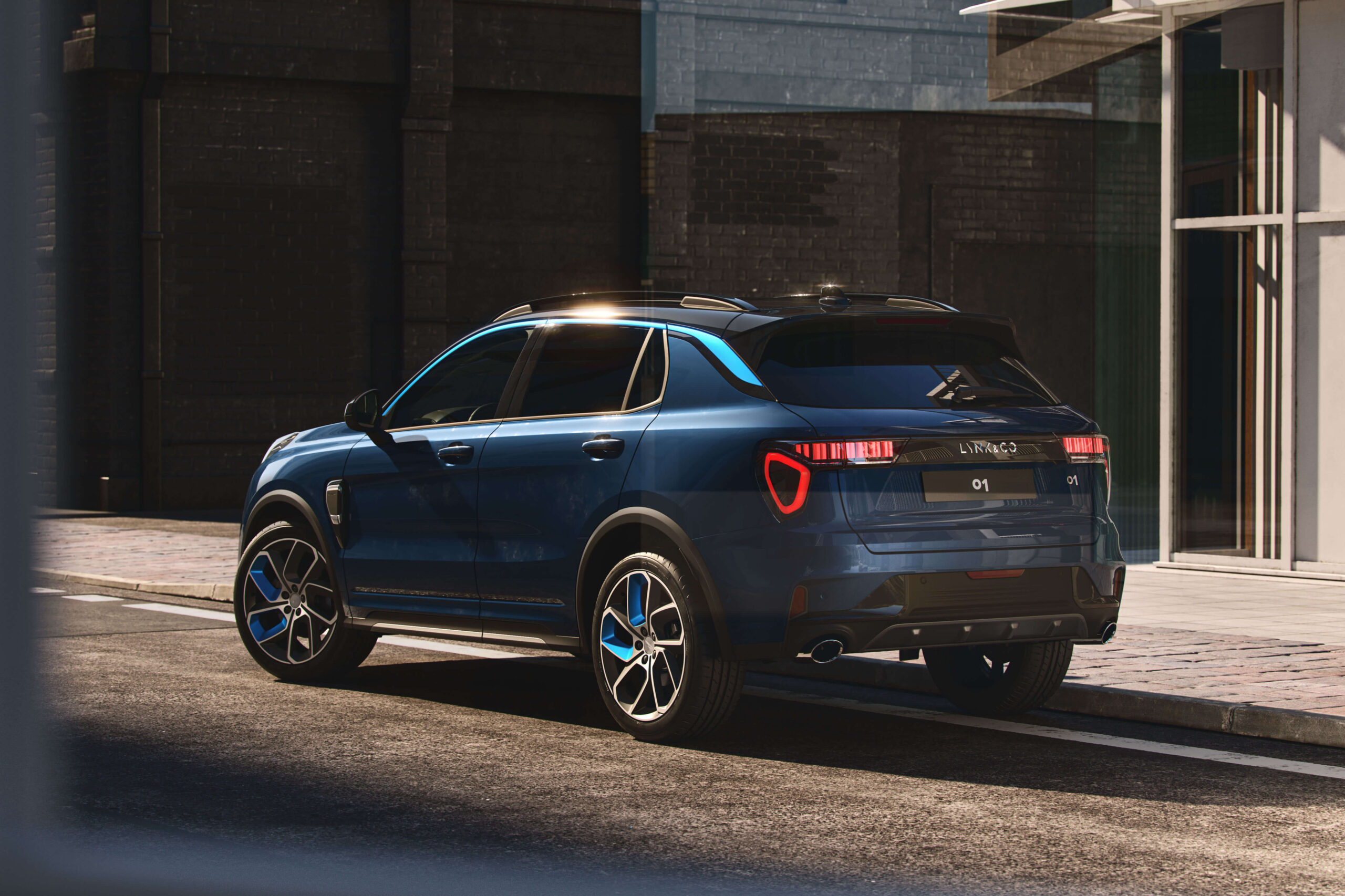
Restart the infotainment system
A soft reset solves around 70 percent of connectivity problems. Press and hold the volume and voice command buttons together for a few seconds until the screen goes black. The system will reboot and often restores the internet connection automatically.
Is this not working? Then switch the car off completely, get out and wait thirty seconds before starting again. This gives all systems, including the Snapdragon chips, the chance to fully reset. In PHEV models (plug‑in hybrids) with a 17.7 kWh battery and an electric range of 75 kilometres, the system can sometimes freeze due to energy management.
Pair your smartphone again
Outdated Bluetooth or USB pairings can disrupt the internet connection. Remove all existing pairings with your phone via Settings > Bluetooth and Settings > Apple CarPlay/Android Auto. Then restart both your phone and the infotainment system.
Next, pair your phone again, preferably using the wireless option. Wireless connections are more stable than wired USB connections, especially on newer models with Android Auto. Make sure your phone also has an active internet connection via 4G or 5G so the system can share data.
‘ After the update, the system often automatically restores a stable connection to the mobile network. ’
Update the software
Outdated firmware often causes connectivity problems. The Lynk & Co 01 supports OTA updates (automatic software updates via the internet), but these only work if you already have an internet connection. So temporarily use the hotspot function on your smartphone to connect the system to the internet.
Go to Settings > System > Software update and check whether updates are available. You can also say “update system” via voice control to start the check. Download and install all available updates, even if this takes a while. After the update, the system often automatically restores a stable connection to the mobile network.
Resolve signal interference
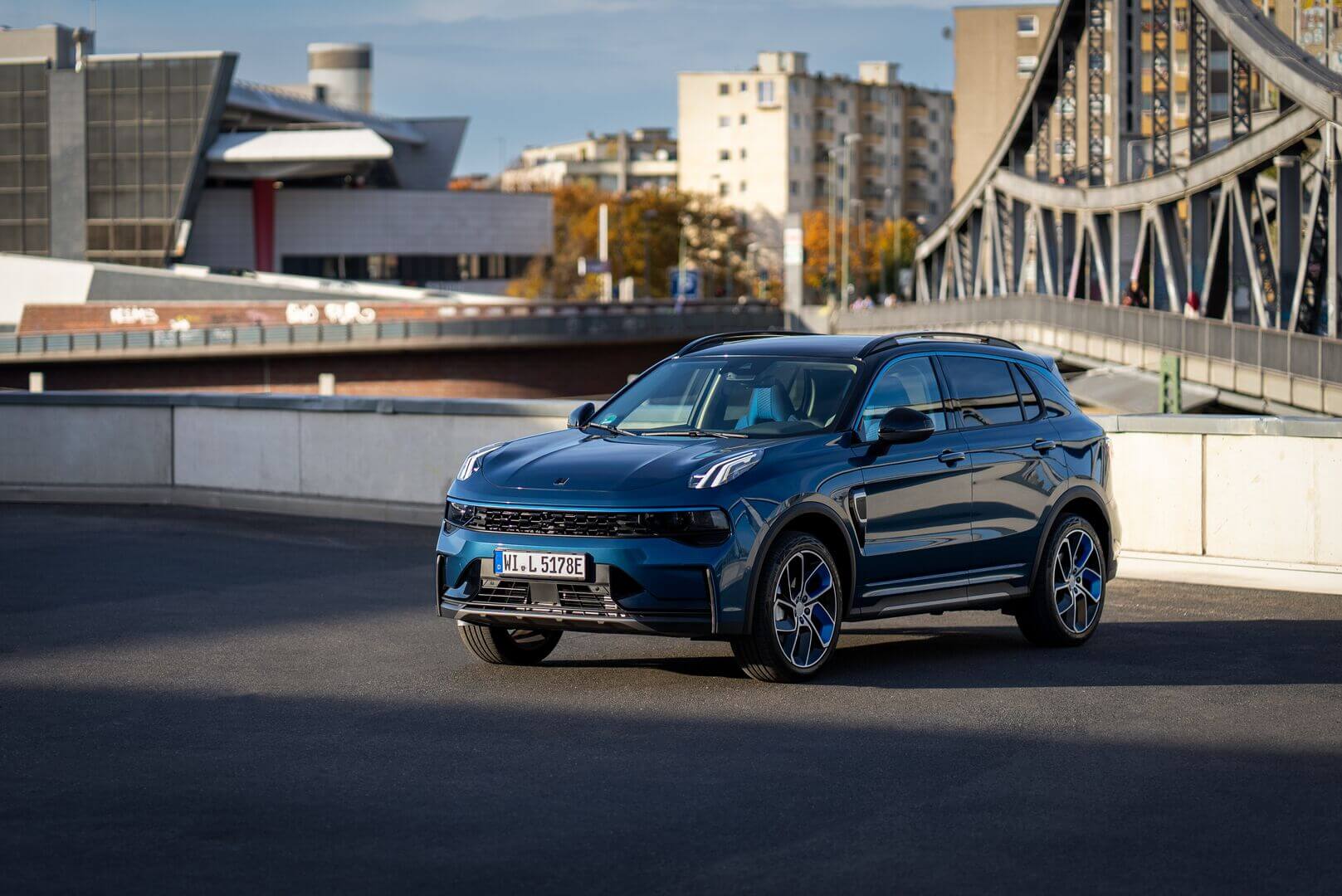
The dual‑chip system of the Lynk & Co 01 combines multimedia, navigation and connectivity, but can suffer from interference. Especially with PHEV versions (plug‑in hybrids) weighing 2,350 kilograms and with 20 centimetres of ground clearance, owners report that the connection drops out in multi‑storey car parks or areas with a weak signal.
Test the connection in different locations. Park the car outside with good reception and check whether the internet connection works there. Also temporarily switch aeroplane mode on and off again via the quick settings. This forces the system to search again for the strongest network.
Watch out for possible sources of interference in the car itself. The Harman Infinity audio system (premium sound system) with multiple speakers and the wireless chargers can interfere with Wi‑Fi and Bluetooth signals. Temporarily switch these off to test whether the connection then remains stable.
Use a factory reset as a last resort
If the above steps do not help, consider a factory reset. Note: this deletes all personal settings, saved locations and paired devices. So first back up important data via the on‑board hard drive with 128GB of storage.
Go to Settings > System > Reset and select the option to restore factory settings. The system will restart and reconfigure itself. This often resolves stubborn software errors that are blocking the internet connection. After the reset you will need to pair all devices again and re‑enter your preferences.
‘ You cannot fix this yourself and it requires professional diagnostics. ’
When should you go to the dealer?
Does the internet connection keep dropping out after all the above steps? Then there may be a hardware problem with the eSIM, the antenna or the Snapdragon 820A+ or 8155 chip. You cannot resolve this yourself; it requires professional diagnostics.
Visit a Lynk & Co dealer for a thorough check. The technician can carry out an in‑depth diagnosis via the 12V outlets and DVR USB (USB port for dashcam/recording functionality). A firmware flash often solves the problem, but sometimes a component has to be replaced. This mainly occurs with early production models or cars that regularly make long journeys using adaptive cruise control (ACCQA, Adaptive Cruise Control with Queue Assist) and lane assist (TJA, Traffic Jam Assist).


Practical tips from owners
Lynk & Co 01 drivers share useful experiences about connectivity problems. Many owners use their smartphone hotspot as a backup for navigation and streaming. This works well in combination with the 360‑degree cameras and traffic sign recognition (TSR), which are less dependent on the internet connection.
Some owners report that tethering from the phone is more stable than the built‑in eSIM, especially on longer trips. Test this yourself by setting your phone up as a hotspot and connecting the infotainment system to it. This way you retain access to all online functions, even if the eSIM does not work.
Another handy tip: use the Lynk app for remote start and pre‑cooling before you get in. This ensures that all systems, including connectivity, are already active when you start driving. Especially with the sporty character of the Lynk & Co 01, accelerating from 0–100 kilometres per hour in 7.7 seconds, you will want to enjoy navigation and music straight away.
On the Carnews website you will find a lot more information about solving technical problems in modern cars. Discover practical guides, comparisons and tips to get the most out of your infotainment system.
Frequently asked questions
The most common causes are software or chip‑related faults in the infotainment system, which cause the modem or connectivity functions to crash. In addition, problems with the built‑in eSIM or an inactive/invalid data subscription occur frequently. Network and signal issues, such as weak coverage or faults/interference, can also interrupt the connection. Finally, compatibility or configuration problems with paired smartphones (for example via Apple CarPlay or Android Auto) can cause the internet connection to drop out.
First try restarting the infotainment system by holding down the volume and voice buttons, or by switching the car completely off and on again. Then check in the Settings > Connectivity > Mobile data menu whether the (e)SIM is active and there is a valid data subscription or hotspot connection. Make sure the infotainment system software is up to date via a Wi‑Fi or hotspot connection and re‑pair your phone (Bluetooth/CarPlay/Android Auto) if necessary. If this does not help, you can as a last resort carry out a factory reset via Settings > System > Reset (back up your data first).
Without an internet connection, online functions such as cloud navigation (live traffic information, online maps and POI search) will no longer work. Over‑the‑air software and map updates are also unavailable. Streaming services for music and other online media via the car itself will not function. Any connected services via the Lynk & Co app (such as certain remote functions) may become limited or unusable.
This is not a structural factory defect, but it is a complaint that Lynk & Co 01 drivers do report more often in relation to the internet connection of the infotainment system. Contact the dealer if a reset, checking your (e)SIM/subscription and updating the software do not solve the problem. If the connection regularly drops out or cannot be established at all, it is also wise to involve the dealer. Using diagnostic equipment and firmware updates, they can check whether there is a hardware or software defect.
To prevent future drop‑outs, make sure the data subscription/eSIM is active and regularly check in the Settings > Connectivity menu that mobile data is enabled. Keep the infotainment system up to date by installing OTA updates as soon as they are offered. Set up a stable hotspot on your phone as a backup and re‑pair CarPlay/Android Auto if the connection drops more often. If the problem continues to recur, have the dealer run a software diagnosis and, if necessary, carry out a firmware update.