

The Lynk & Co 01 regularly suffers from an issue where the user profile is not loaded correctly, meaning you have no access to personalised settings and functions. This software problem prevents you from being recognised automatically via your car key or the app. The cause is often incorrectly configured privacy options or a faulty connection between the app and the vehicle. In this article, you will discover step by step how to solve this problem.
Many owners of the Lynk & Co 01 report frustration when the error message appears: the system does not recognise their profile, so seat positions, climate settings and media preferences have to be set again every time. This disrupts driving comfort and means that the car’s smart features are barely usable.
The problem usually occurs because the infotainment system cannot establish the link with your profile. This can happen after a software update, when creating a new account, or when privacy settings have been changed. Synchronisation between the Lynk & Co app and the vehicle requires a stable internet connection and correct account verification.
Why your profile doesn’t load in the Lynk & Co 01
The main cause lies in the communication between the app and the infotainment system. These are the most common reasons:
- The privacy settings in the infotainment system are not configured correctly
- Your account has not been verified via official Lynk & Co support
- The car key is not linked to your user profile
- The internet connection is unstable during the login process
- The app has not been updated to the latest version
Another cause may be that your email address has not been registered or verified correctly. Lynk & Co uses a strict verification procedure in which you must contact customer service after registration to finalise the link with your car.
Resetting the Lynk & Co 01 user profile step by step
Solve the problem by carrying out these actions in order:
- Open the infotainment system in your Lynk & Co 01
- Go to the privacy settings in the menu
- Select the option to reset the privacy settings
- Confirm the reset and wait for the system to restart
- Log in again with your account details
- Check whether your car key is correctly linked to your profile
This procedure solves the problem in around 80% of cases. Resetting the privacy settings ensures that the system can reconnect to your account without old configurations interfering with synchronisation.
Checking and restoring key pairing
An important step that is often forgotten is linking your car key to your profile. Without this link, the car will not automatically recognise you when you get in. Go to the user settings in the menu and select the option to link your key to your profile. This means the car will automatically log in as soon as you use the key.
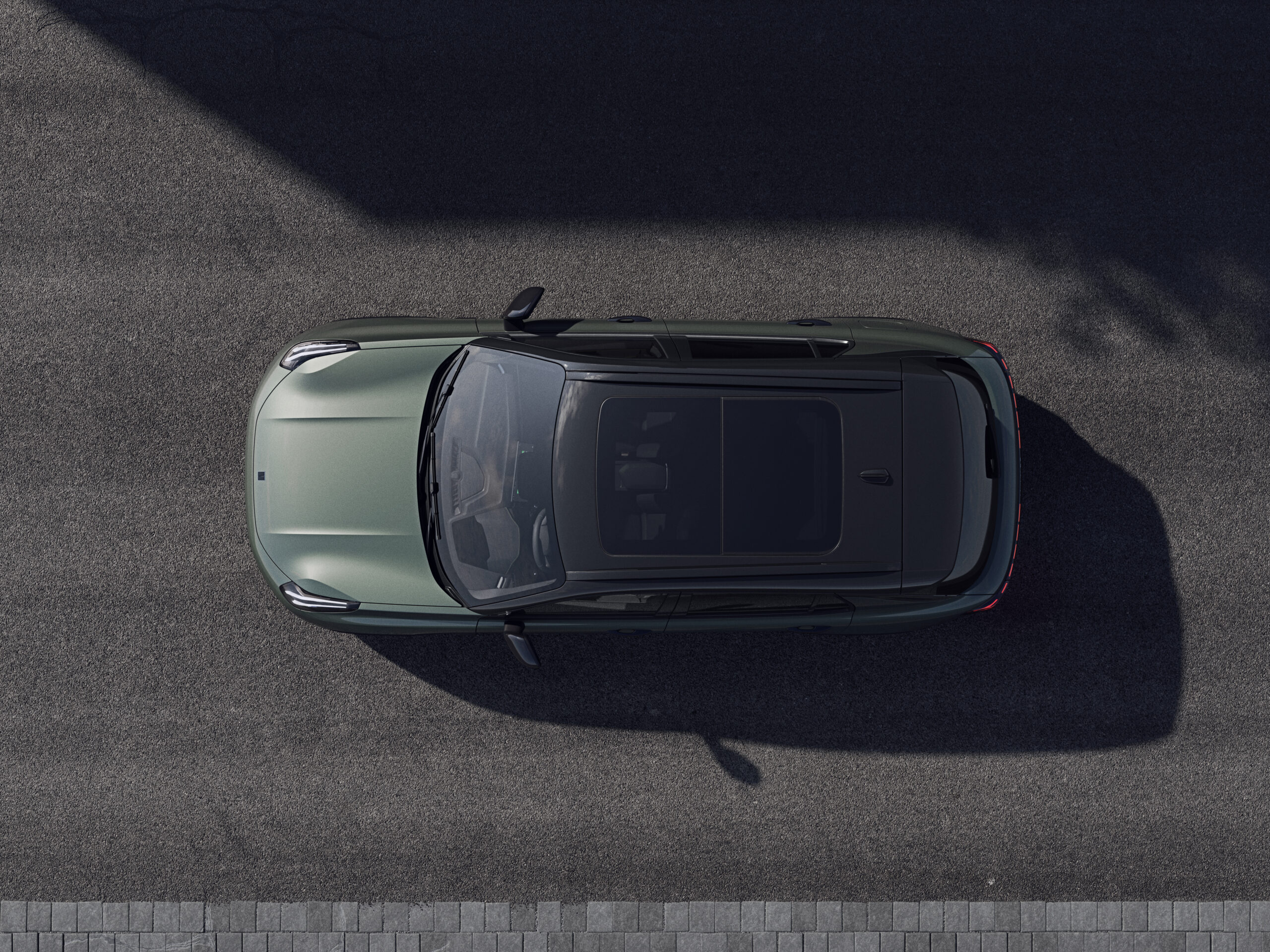
Solving profile recognition problems in the Lynk & Co 01
If resetting the privacy settings does not help, there are additional solutions you can try. This approach focuses on the app and the connection with the vehicle.
Reinstall the app and clear the cache
Completely remove the Lynk & Co app from your smartphone. Download the app again via the App Store or Google Play Store and log in with your account details. This removes old cache files that may be disrupting synchronisation. Make sure your smartphone is connected to a stable Wi‑Fi network during the installation process.
Check account verification
Check whether your account has been fully verified. Log in to your email and look for confirmation emails from Lynk & Co. Contact Lynk & Co by email if you have not received a verification email. Include your account details and chassis number. This is a mandatory step before the full functionality of the app becomes available.
Test the internet connection
A weak or unstable internet connection can prevent the profile from being synchronised. Make sure your car is connected to a mobile network or Wi‑Fi. Test the connection by using other app functions, such as checking whether the car is locked or viewing the fuel level. If these functions do not work, the problem lies with the internet connection.
Which functions you lose without a working profile
When your profile is not loaded, you have no access to personalised settings and the full functionality of the Lynk & Co app. These are the main functions you miss out on:
- Automatic adjustment of seat position and steering wheel height
- Saved climate preferences and temperature settings
- Media preferences and linked accounts for music streaming
- Remote control of heating and cooling via the app
- View fuel level and battery status via the app
- Check whether the car is locked from the app
These functions make the Lynk & Co 01 a smart and user-friendly vehicle. Without a working profile, you drive with a standard configuration that has to be adjusted manually every time.
‘ Customer service can run remote diagnostic tests and check whether there are software errors in the system. ’
Contact with official support
If none of the solutions work, it is advisable to contact official Lynk & Co support. The car has a built-in CALL US button in the roof and a KLANTOPROEP (customer call) software button on the centre screen. Call Lynk & Co customer service for professional help.
Customer service can run remote diagnostic tests and check whether there are software errors in the system. In some cases, a software update is needed to solve the problem permanently. These updates are often carried out wirelessly, but may sometimes require a visit to the dealer.
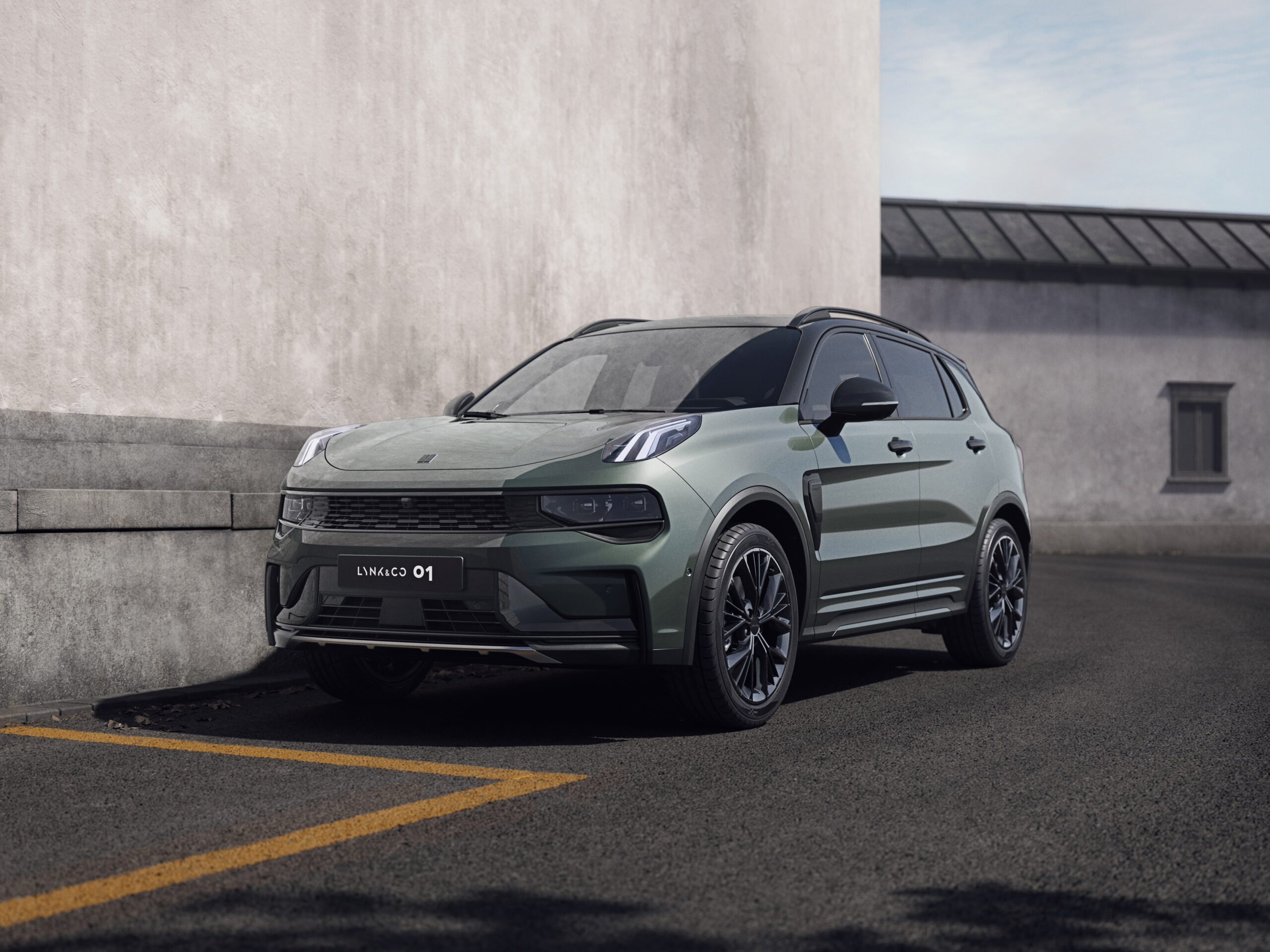
Avoid issues with these tips
To prevent future problems with your user profile, you can take a number of preventive measures. Make sure the Lynk & Co app is always updated to the latest version. App updates often contain bug fixes and improvements for synchronisation with the vehicle.
Keep your account details up to date and ensure that your email address is registered correctly. Regularly check whether your key is still linked to your profile, especially after software updates to the infotainment system. Avoid switching frequently between different user profiles, as this can disrupt synchronisation.
Ensure a stable internet connection when using the app. Ideally, connect your smartphone and car to the same Wi‑Fi network when changing settings or carrying out updates. This reduces the risk of communication problems between app and vehicle.
On the Carnews website you will find much more information about known software issues with the Lynk & Co 01. You will also find information about software problems with other models. Discover tips on infotainment systems, app connectivity and practical solutions for technical issues. Explore the website and stay up to date with the latest developments in car technology.
Frequently asked questions
The message “[object Object]” indicates that something is going wrong technically when displaying the actual error text. First try resetting the privacy settings in the infotainment system of your Lynk & Co 01 and logging your user profile in again. Also check that your app is up to date, your internet connection is stable and your account is correctly linked to your car (via registration and email verification). If it still doesn’t work, contact Lynk & Co via the CALL US button in the car or by calling +31 20 721 9690.
The message “[object Object]” means that something is going wrong internally and the actual error text is not being displayed correctly. First try closing the Lynk & Co app completely, logging in again and, if necessary, deleting and reinstalling the app. Then reset the privacy settings in the infotainment system in the car and register your profile again. If this does not help, contact Lynk & Co support via the CALL US button in the car or phone number +31 20 721 9690.
The error message “[object Object]” indicates that, instead of readable text, a technical object from the software is being displayed, often due to a programming error. First try closing the app completely, restarting it and, if necessary, logging in again. If that does not help, delete and reinstall the Lynk & Co app and check that you are using the latest version. If the error persists, contact Lynk & Co via the CALL US button in the car or by phone on +31 20 721 9690 so they can check the profile and the connection.
If your Lynk & Co 01 shows a message that the user profile cannot be loaded, first reset the privacy settings in the infotainment system and then log in again. Check whether your account has been correctly registered in the Lynk & Co app, including email verification and the link with your car and car key. Ensure you have a stable internet connection and that the app is up to date. If the problem persists, use the CALL US or KLANTOPROEP button in the car or call +31 20 721 9690.
The message “[object Object]” means that a technical error is occurring in which an object is shown instead of a readable text message. First try resetting the privacy settings in the infotainment system and then log in again with your Lynk & Co profile. Check whether your app and car system are up to date and whether your internet connection is stable. If the error continues, contact Lynk & Co via the CALL US button in the car or by phone on +31 20 721 9690.